AI assistant (MCP)
What it is
MCP (Model Context Protocol) is a standard way to give an AI assistant — Claude and other MCP clients — tools to work with your software. Orbitra ships an MCP server, so after a one-time connection you can simply write to the assistant:
"How did my campaigns do over the last 7 days? Which one lost money?"
"Show yesterday's conversions for the Keto DE campaign by country."
"Create 5 campaigns for offer #4 — one per GEO: DE, AT, CH, FR, IT — on the domain go.example.com."
"Add the domain promo.example.com and put campaign 12 on its root."
"Which creatives had ROI below zero this week?"
The assistant calls the tracker's API for you: it reads statistics, builds reports, creates and edits campaigns, offers, domains, traffic sources and landings (41 tools in total). It sees only what your API key allows.
Read key or write key?
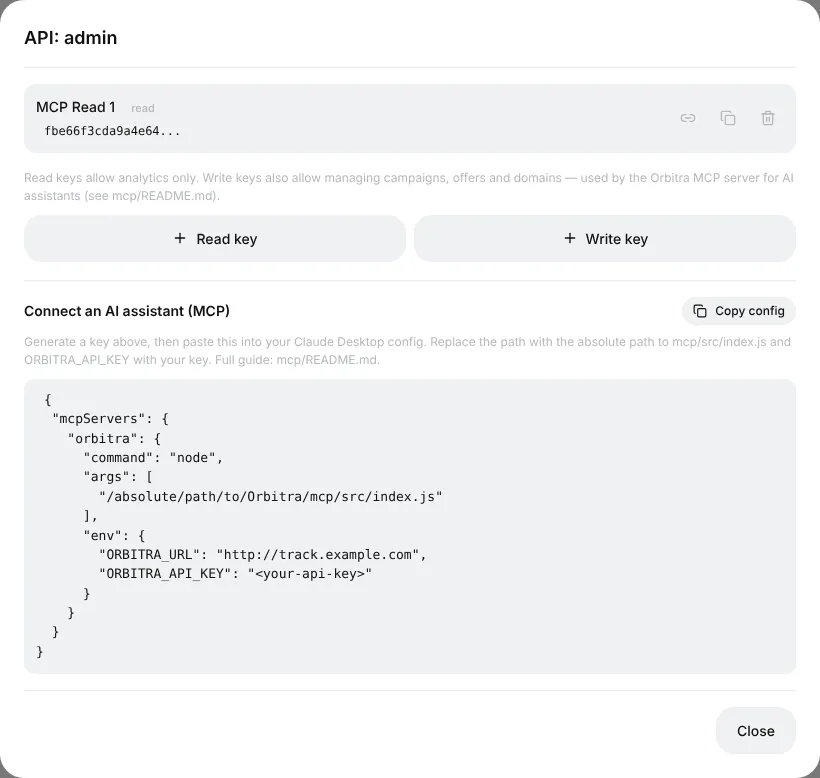
Keys are made in ⚙ → Users → the number in the API keys column of a user → Read key or Write key.
| Key | Can |
|---|---|
| Read | Only look: metrics, lists, reports, conversions. Physically cannot change anything — safe to start with |
| Write | Everything Read can, plus create, edit and delete campaigns, offers, domains, sources, landings |
Start with a Read key. If you ask a Read-key assistant to change something, it answers 403 API key is read-only — then create a Write key.
Connecting — option A: a link (the easiest)
Works in the Claude apps (web, desktop, mobile), nothing to install.
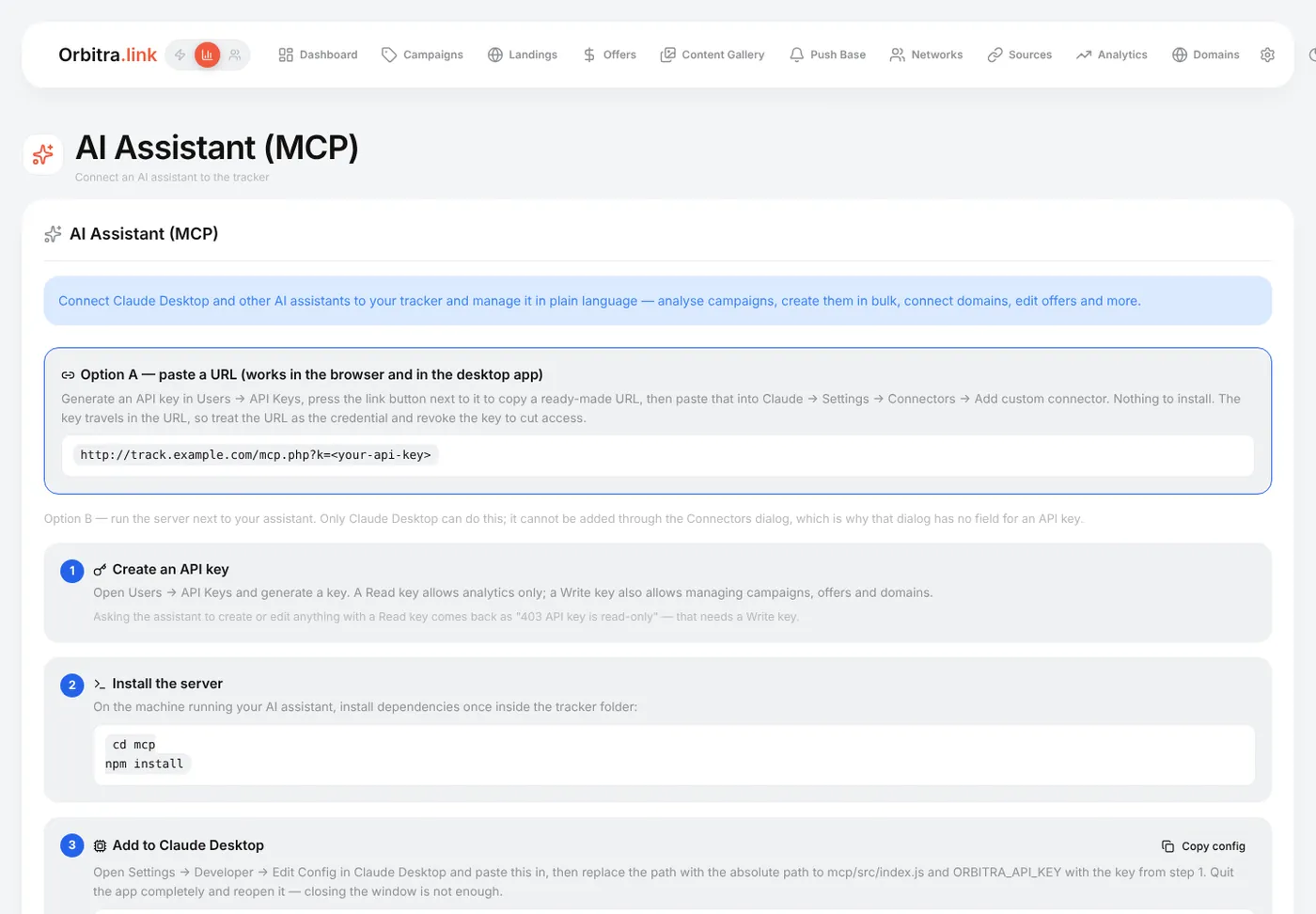
- Create a key (see above) and press the link icon next to it — a ready URL like
https://track.example.com/mcp.php?k=YOUR_KEYis copied. - In Claude: Settings → Connectors → Add custom connector, paste the URL, give it a name (Orbitra), Add.
- In a new chat, ask "Ping my Orbitra tracker" — the assistant should answer with your tracker's version.
🔑 The key is inside the link, so treat the link like a password: do not post it anywhere. To cut access, delete the key — the link stops working immediately.
The page ⚙ → AI / MCP shows the same instructions with your tracker's address already filled in.
Connecting — option B: local server for Claude Desktop
For people who prefer to run the server on their own computer. You need Node.js and a copy of the Orbitra repository.
- In the repository:
cd mcp && npm install. - In Claude Desktop: Settings → Developer → Edit Config and add:
{
  "mcpServers": {
    "orbitra": {
      "command": "/usr/local/bin/node",
      "args": ["/absolute/path/to/Orbitra/mcp/src/index.js"],
      "env": {
        "ORBITRA_URL": "https://track.example.com",
        "ORBITRA_API_KEY": "your-api-key"
      }
    }
  }
}- Quit Claude Desktop completely (⌘Q on Mac) and start it again.
The Copy config button in the API keys window gives you this block with your address. If the server does not appear: use the absolute path to node (which node shows it), check npm install ran, and check the key with ORBITRA_URL=… ORBITRA_API_KEY=… npm run smoke -- --ping.
Good prompts
- Be specific about the period and the entity: "campaign 12, last 7 days, by country".
- For changes, ask for a plan first: "Show me what you would create, then wait for my OK".
- Bulk work is where it shines: "Clone campaign 12 for AT and CH, same streams, offer #7 instead of #4".
Safety
- The key only goes to your own tracker address.
- Delete a key in ⚙ → Users and every assistant using it loses access at once.
- Give the assistant a Read key unless you really need it to change things.
Metrics cheat sheet
Every report column in Orbitra with its formula: CR, CPC, CPA, ROI, ePC and more.
Read guide →ReferenceGlossary of abbreviations
Affiliate marketing terms and abbreviations explained in plain words.
Read guide →ReferenceGeo databases
Install Sypex Geo, MaxMind and IP2Location, and why better geo data improves cloaking.
Read guide →ReferenceAI assistant (MCP)
Connect Claude or another AI assistant to your tracker via MCP and manage it in plain words.
Read guide →