Connecting a domain
What it is
A domain is the address your campaign links live on: https://go.example.com/5i5pvic4. The tracker works without one (by the server IP), but:
- ad networks and messengers trust a domain with HTTPS much more than a bare IP;
- if a domain gets flagged, you replace the domain and keep the campaigns;
- each domain can have its own settings: hide the admin panel, open a campaign on the root, catch 404s.
You can park as many domains on one tracker as you like. Every campaign picks one of them.
How to connect a domain
1. Buy a domain
Any registrar works. If you use Cloudflare, Namecheap or Dynadot, connect the account under ⚙ → Integrations first — then Orbitra writes the DNS record for you and you can skip step 3.
2. Add it in the panel
Domains → Add domain. Type the domain (go.example.com) or several at once separated by commas — https:// and slashes are cleaned automatically. Press Add.
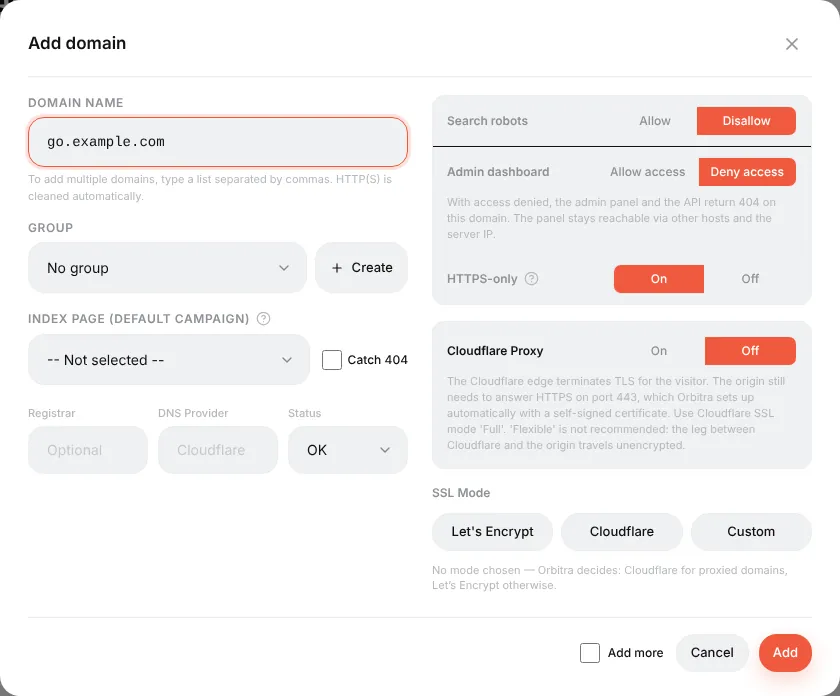
The defaults are safe for a tracking domain, so for the first domain you can leave everything as is. What the switches mean:
| Setting | What it does | Typical value |
|---|---|---|
| Group | Just for sorting the list | — |
| Index page | The campaign shown when someone opens the domain without a path (https://go.example.com/) | Usually empty |
| Catch 404 | Unknown paths also open the Index page campaign instead of a 404 | Off |
| Search robots | Disallow adds noindex and a robots.txt that closes the site | Disallow |
| Admin dashboard | Deny access makes the panel and API answer 404 on this domain. Tracking keeps working, the panel stays reachable on other domains and by IP | Deny for tracking domains |
| HTTPS-only | Redirects http:// to https:// | On |
| Cloudflare Proxy | Turn on only if the domain is proxied by Cloudflare (orange cloud) | Off |
| SSL Mode | Leave unselected: Orbitra picks Let's Encrypt, or Cloudflare for proxied domains | — |
3. Point the domain to the server
At your DNS provider, create an A record:
| Type | Name | Value |
|---|---|---|
| A | go (or @ for the root domain) | the server IP shown at the top of the Domains page |
4. Wait for the certificate
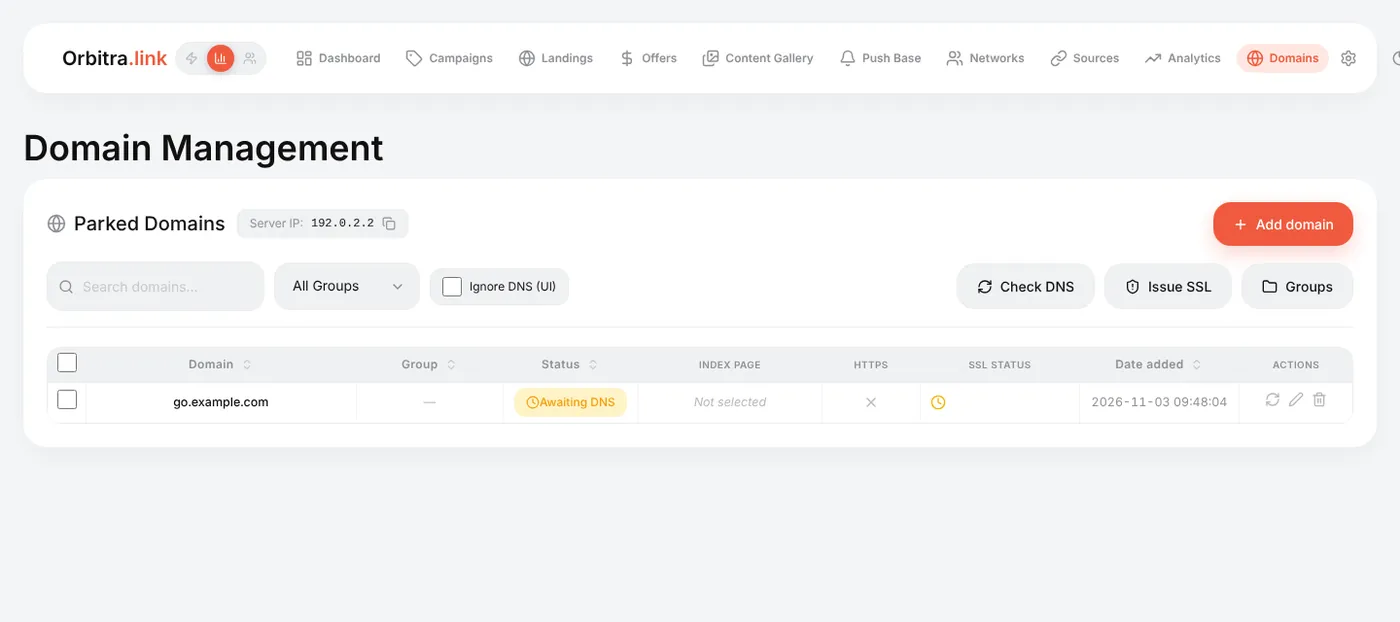
Orbitra checks DNS by itself and, as soon as the A record points to the server, issues a free Let's Encrypt certificate (a background job runs every 5 minutes; Issue SSL starts it right away). The SSL status column tells you what it is waiting for — usually "the domain does not point at the server yet", which fixes itself once DNS propagates (minutes to a few hours).
5. Use it in a campaign
Open a campaign → General → Domain. The campaign URL changes to the new domain immediately. Moving many campaigns at once: select them in the campaign list and use the bulk action.
Tips
- Keep the panel on a separate domain. Use one domain for the panel (
track.example.com, admin access allowed) and other domains for campaigns (admin access denied). A moderator who opens your campaign domain never sees a login page. - Cloudflare: if the domain is proxied (orange cloud), switch Cloudflare Proxy on. Orbitra puts a self-signed certificate on the server for Cloudflare's Full mode. For Full (strict) see Cloudflare Full Strict SSL.
- The domain shows "Disabled" — someone set its status to Disabled; such a domain answers 404 to everything, tracking included.
- Need a PWA on the root of a domain? Bind the domain to the PWA landing: see PWA apps.
Reference: Domains and SSL, Cloudflare.
Beginner's guide: start here
A screen-by-screen tour of Orbitra: what the tracker does, the words you will meet, and the order to read the guides in.
Read guide →GuideYour first campaign, step by step
From a fresh install to a working campaign link and a test conversion: domain, network, offer, source, campaign, postback.
Read guide →GuideConnecting a domain
Add a domain, point DNS at the tracker, get a free SSL certificate, and what every switch on the Domains page does.
Read guide →GuideOffers and affiliate networks
How offers and networks are organized in Orbitra: templates, offer parameters and payout settings.
Read guide →GuidePostbacks: what to tell your affiliate manager
How conversions reach Orbitra: the postback URL, statuses, and what to copy-paste to your network.
Read guide →GuideStreams: how traffic is distributed
What a stream is, schemas, rotation and weights, and how Orbitra decides where a click goes.
Read guide →GuideStream filters
Country, device, ISP, bots and more: every filter explained with examples of common routing setups.
Read guide →GuideCloaking for beginners
Safe page vs money page, filter levels, sensitivity, and how to test your cloak before sending real traffic.
Read guide →GuideLanding pages
Host landings right in the tracker: landing types, the {offer} macro, the JS adapter and tracking pixels.
Read guide →GuidePWA apps
Build an installable PWA from a landing page: icon, screenshots, store listing and limits.
Read guide →GuidePush notifications to PWA users
Collect push subscribers from PWA landings and send them notifications — free re-engagement traffic.
Read guide →GuideContent Gallery
Store icons, screenshots and creatives in the tracker and reuse them across PWAs and landings.
Read guide →GuideCreatives and creative testing
Track which creative a click came from: subid routing, a test campaign and reading the report.
Read guide →