Content Gallery
What it is
The Content Gallery is the tracker's own media library — one place for all images and videos you use in the panel:
- app icons and screenshots for PWAs;
- images for landings, offers, popups and push notifications;
- your ad creatives (and, with Facebook/TikTok cost import connected, the creatives pulled from your ad accounts — see Creatives).
Files are stored on your own server. Every image picker in the panel (the PWA icon, screenshots, popup images…) opens this library, so you upload once and reuse everywhere.
It has two tabs: Files (the library) and Creatives (performance of ad creatives).
Uploading
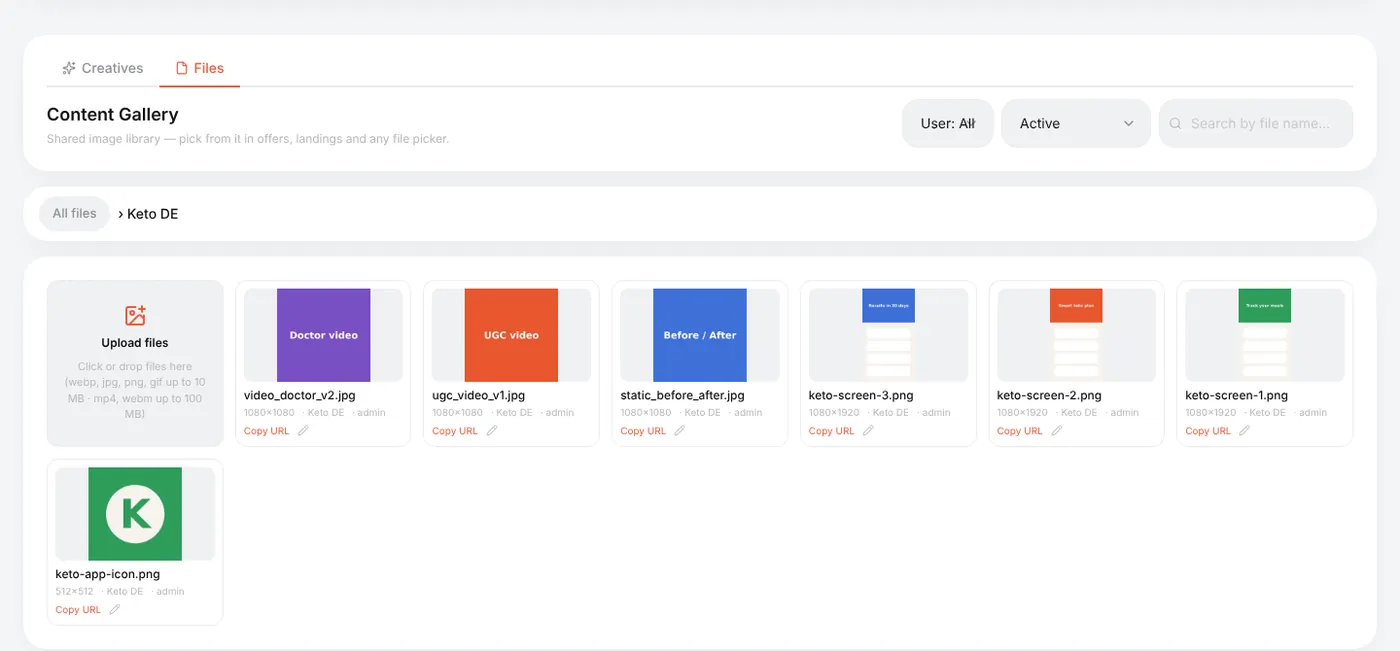
Content Gallery → Files:
- Optionally create a folder: New folder — e.g. one per offer or per GEO.
- Open the folder and drop files on Upload files (or click it).
| What | Limit |
|---|---|
| Images | webp, jpg, png, gif — up to 10 MB |
| Video | mp4, webm — up to 100 MB |
| SVG | not allowed (it can carry scripts) |
The tracker checks the real file type, not the extension — a renamed file is rejected.
Each tile shows the size in pixels; Copy URL copies a direct link (handy for push icons or an <img> in a landing); the pencil renames or moves the file.
Ready-made folders — PWA Presets and Popup images — ship with the tracker and are used by the PWA presets and popup templates.
Picking files in editors
Wherever the panel needs an image, a Choose from gallery button opens the picker: the same folders, search and an upload tab.
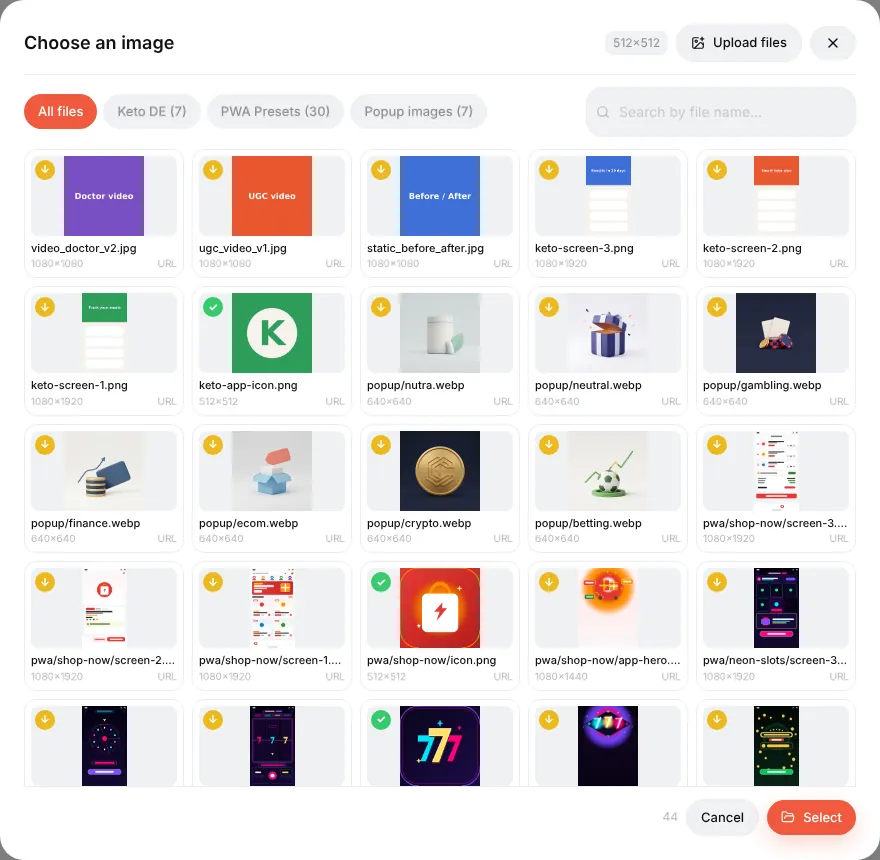
When the slot has a required size (a PWA icon must be 512×512), tiles are labelled exact match, croppable or too small. Picking a bigger image opens a cropper; the result is saved as a new file, and the original stays untouched.
Deleting
Deleting is soft: the file disappears from the picker, but pages that already use it keep showing it. Switch the filter to Inactive (deleted) to see such files. Deleting a folder moves its files to the root.
Reference: Content Gallery, Creatives library.
Beginner's guide: start here
A screen-by-screen tour of Orbitra: what the tracker does, the words you will meet, and the order to read the guides in.
Read guide →GuideYour first campaign, step by step
From a fresh install to a working campaign link and a test conversion: domain, network, offer, source, campaign, postback.
Read guide →GuideConnecting a domain
Add a domain, point DNS at the tracker, get a free SSL certificate, and what every switch on the Domains page does.
Read guide →GuideOffers and affiliate networks
How offers and networks are organized in Orbitra: templates, offer parameters and payout settings.
Read guide →GuidePostbacks: what to tell your affiliate manager
How conversions reach Orbitra: the postback URL, statuses, and what to copy-paste to your network.
Read guide →GuideStreams: how traffic is distributed
What a stream is, schemas, rotation and weights, and how Orbitra decides where a click goes.
Read guide →GuideStream filters
Country, device, ISP, bots and more: every filter explained with examples of common routing setups.
Read guide →GuideCloaking for beginners
Safe page vs money page, filter levels, sensitivity, and how to test your cloak before sending real traffic.
Read guide →GuideLanding pages
Host landings right in the tracker: landing types, the {offer} macro, the JS adapter and tracking pixels.
Read guide →GuidePWA apps
Build an installable PWA from a landing page: icon, screenshots, store listing and limits.
Read guide →GuidePush notifications to PWA users
Collect push subscribers from PWA landings and send them notifications — free re-engagement traffic.
Read guide →GuideContent Gallery
Store icons, screenshots and creatives in the tracker and reuse them across PWAs and landings.
Read guide →GuideCreatives and creative testing
Track which creative a click came from: subid routing, a test campaign and reading the report.
Read guide →