Streams: how traffic is distributed
What a stream is
A campaign has one link, but visitors are different: different countries, phones and computers, real people and bots. Streams are the rules that decide what each visitor gets. Every stream has:
- filters — who it is for (country, device, browser, URL parameter…);
- a schema — what to do with them (send to an offer, show a landing first, show a 404, cloak).
When a visitor opens the campaign link, Orbitra goes through the streams and picks one.
The three stream types
Create Stream offers three types:
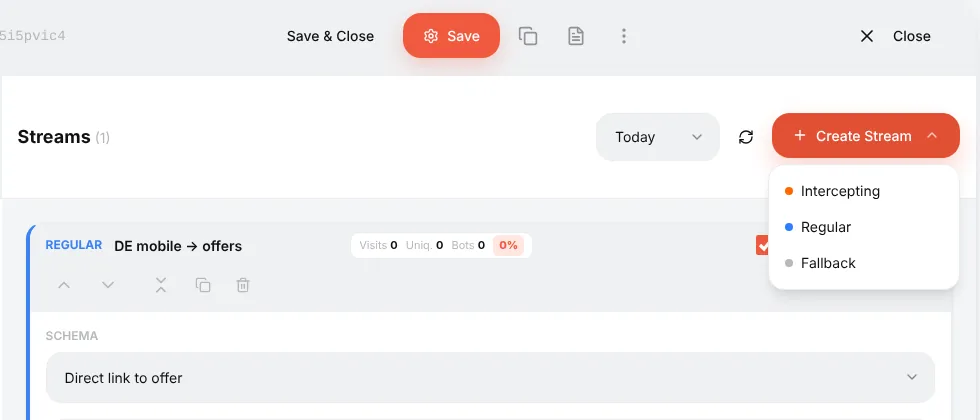
| Type | Checked | Use it for |
|---|---|---|
| Intercepting | First, before everything else | Exceptions that must win: bots, moderators, a specific test IP, a "kill switch" |
| Regular | Second | The main traffic: "DE + mobile → offer A", "AT → offer B" |
| Fallback | Last, only if nothing else matched | "Everyone else": a backup offer, a pre-landing, a safe page |
A campaign with only regular streams and no fallback leaves unmatched visitors with nothing — always add a fallback.
Here is the example campaign with all three:
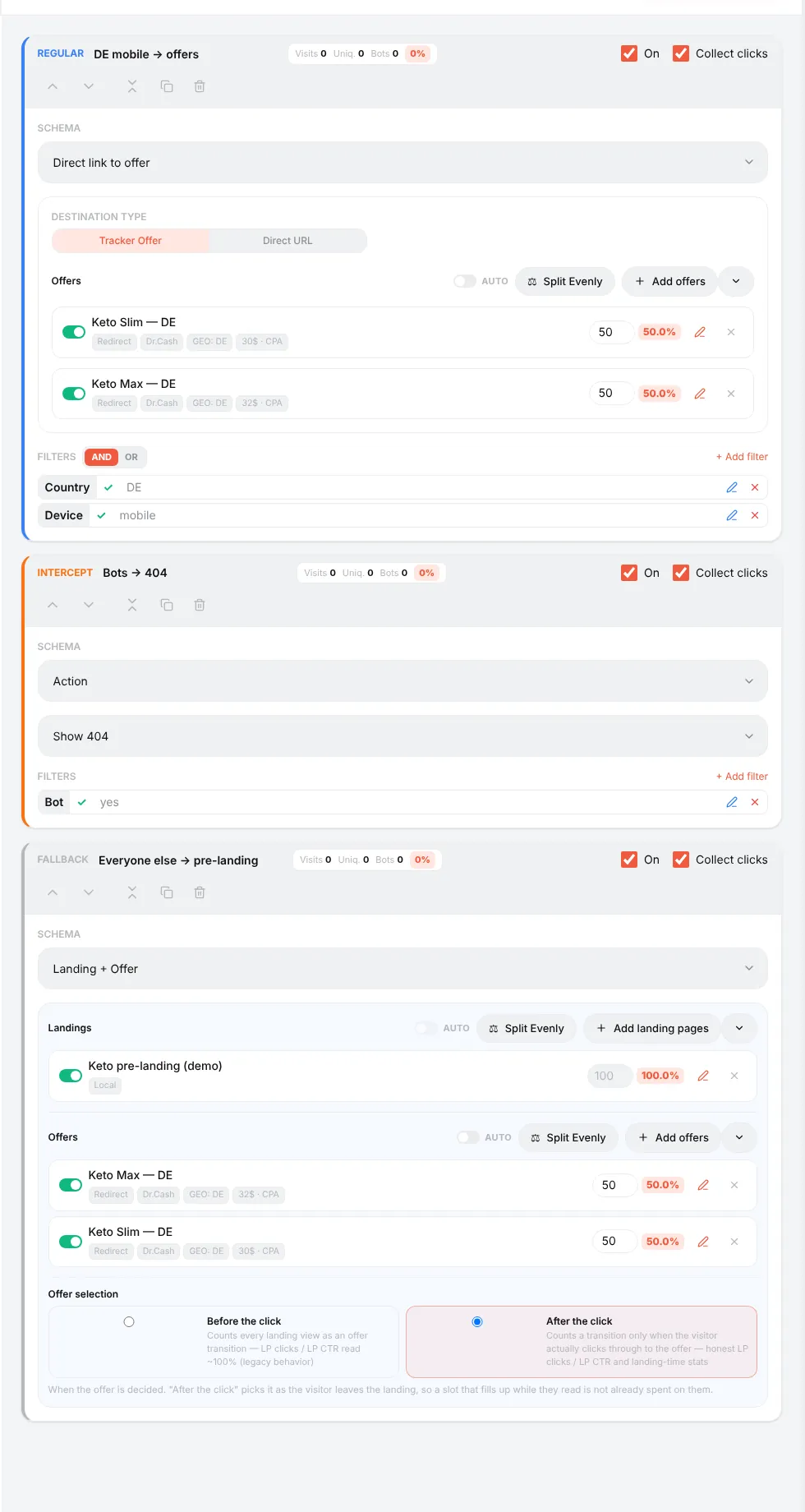
- Bots → 404 (intercepting, filter Bot = yes, action Show 404) — crawlers never reach the offer;
- DE mobile → offers (regular, filters Country = DE and Device = mobile) — the money traffic, split between two offers;
- Everyone else → pre-landing (fallback, no filters) — a landing page with the same offers.
The stream cards are listed in the order you created them; the type decides the priority, not the position on the screen.
How a regular stream is chosen
When several regular streams match the same visitor, the campaign's Rotation Type (on the General tab) decides:
- By position — the first matching stream from the top wins. Move streams with the arrows on the card. Use it when streams are "from specific to general": first "DE + iPhone", then "DE", then "EU".
- By weight — matching streams share the traffic in proportion to their weights. Use it to split-test whole funnels: stream A (landing 1 + offer) 50%, stream B (landing 2 + offer) 50%.
Splitting inside a stream: offers and landings
Inside one stream you can attach several offers (and, for Landing + Offer, several landings). Each gets a weight; the percentage next to it shows its share.
- Split Evenly sets equal weights.
- The switch next to an item turns it off without deleting it.
- AUTO turns on automatic optimisation: the tracker recalculates weights by a metric you choose (confirmed sales, CR, EPC, EPV or ROI) over a window of days, with a minimum number of sales before an item joins and limits on the share. While AUTO is on, manual weights are locked. Use it once each item has enough traffic; on a fresh campaign keep manual weights.
Schemas — what a stream does
| Schema | What the visitor gets |
|---|---|
| Direct link to offer | A redirect straight to the offer (or to a direct URL) |
| Landing + Offer | Your landing page first; the button on it leads to the offer |
| Action | Do nothing, show a 404, show text or HTML, or send to another campaign |
| Cloaking | Bots and moderators get a safe page, real people the money page — see Cloaking |
Offer selection in Landing + Offer: keep After the click (the default). The offer is then chosen when the visitor actually presses the button, so LP clicks and LP CTR are honest.
Other switches on a stream card
- On — disable a stream without deleting it.
- Collect clicks — when off, the visitor is still routed but no click is written. Useful for fallback/white-page streams so junk traffic does not pollute CR; but a click that is not written cannot get a conversion.
- The chips Visits / Uniq / Bots / % show today's (or the selected period's) traffic of the stream and its share of the campaign — a quick way to see how much went to the safe page and how much to the offer.
Checking the routing
The Test link on the General tab with &_dbg=1 shows the decision for your own browser: every stream, every filter's vote, the selected stream and the final URL. Nothing is written to statistics.
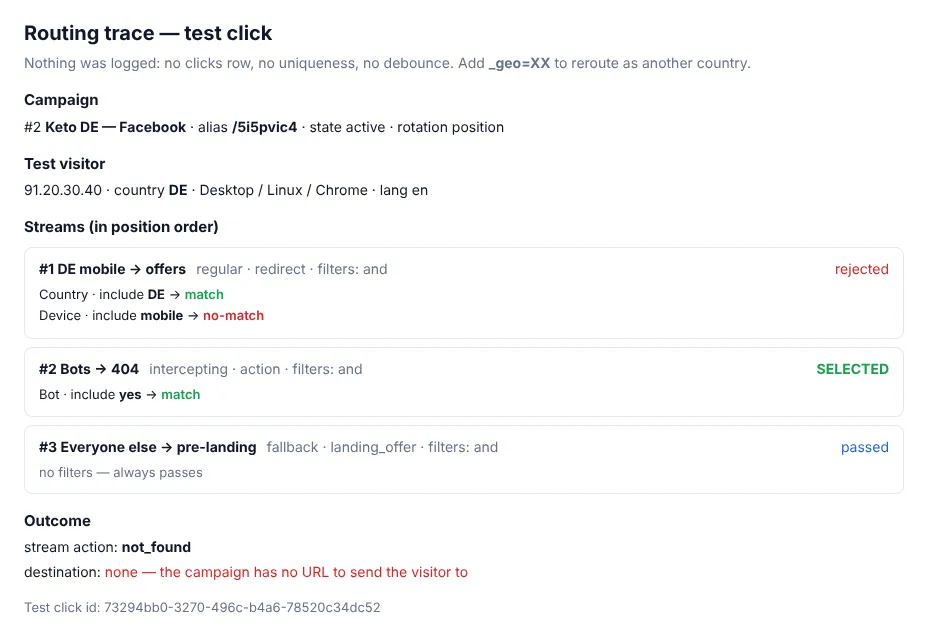
&_geo=AT— pretend to be in another country;- open it on your phone to test the mobile streams;
- ⚙ → Traffic simulation lets you test any IP, User-Agent, country, device and language from the panel.
Reference: Campaigns and streams.
Beginner's guide: start here
A screen-by-screen tour of Orbitra: what the tracker does, the words you will meet, and the order to read the guides in.
Read guide →GuideYour first campaign, step by step
From a fresh install to a working campaign link and a test conversion: domain, network, offer, source, campaign, postback.
Read guide →GuideConnecting a domain
Add a domain, point DNS at the tracker, get a free SSL certificate, and what every switch on the Domains page does.
Read guide →GuideOffers and affiliate networks
How offers and networks are organized in Orbitra: templates, offer parameters and payout settings.
Read guide →GuidePostbacks: what to tell your affiliate manager
How conversions reach Orbitra: the postback URL, statuses, and what to copy-paste to your network.
Read guide →GuideStreams: how traffic is distributed
What a stream is, schemas, rotation and weights, and how Orbitra decides where a click goes.
Read guide →GuideStream filters
Country, device, ISP, bots and more: every filter explained with examples of common routing setups.
Read guide →GuideCloaking for beginners
Safe page vs money page, filter levels, sensitivity, and how to test your cloak before sending real traffic.
Read guide →GuideLanding pages
Host landings right in the tracker: landing types, the {offer} macro, the JS adapter and tracking pixels.
Read guide →GuidePWA apps
Build an installable PWA from a landing page: icon, screenshots, store listing and limits.
Read guide →GuidePush notifications to PWA users
Collect push subscribers from PWA landings and send them notifications — free re-engagement traffic.
Read guide →GuideContent Gallery
Store icons, screenshots and creatives in the tracker and reuse them across PWAs and landings.
Read guide →GuideCreatives and creative testing
Track which creative a click came from: subid routing, a test campaign and reading the report.
Read guide →