Creatives and creative testing
What a creative is
A creative is the ad itself: the video, picture and text people see in Facebook, TikTok or a push network. It decides how many people click and who they are, so in practice it often matters more than the landing. The tracker's job is to tell you which creative brings money, not just clicks.
The idea is simple: every click carries the ID or name of the ad it came from, and reports can be grouped by it.
Step 1. Pass the ad into the campaign link
This is done by the traffic source. The Facebook Ads template already adds Facebook's macros to the campaign link:
| Link parameter | Facebook macro | Becomes |
|---|---|---|
campaign_id, campaign_name | {{campaign.id}}, {{campaign.name}} | The ad campaign |
adset_id, adset_name | {{adset.id}}, {{adset.name}} | The ad set |
ad_id, ad_name | {{ad.id}}, {{ad.name}} | The ad = the creative |
utm_placement | {{placement}} | Feed, Stories, Reels… |
TikTok, Google and other templates do the same with their own macros. You can check and edit them on the campaign's Parameters tab.
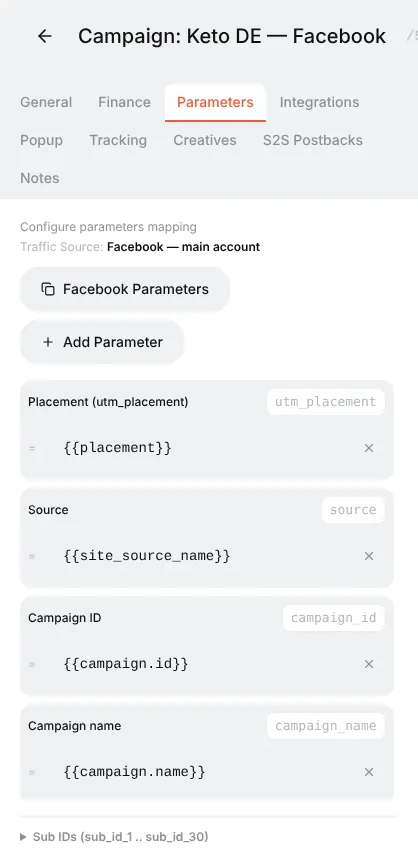
Two rules:
- Put the whole campaign URL with the macros into the ad. The platform replaces
{{ad.name}}with the real name on every click. - Name your ads after the creative:
ugc_video_v1,static_before_after,video_doctor_v2. Then reports are readable without looking up IDs.
Step 2. Test several creatives in one campaign
You do not need a separate tracker campaign for every creative. The usual setup:
Facebook campaign "Keto DE"
  └─ Ad set "DE 25-55 F"  (one audience, one budget)
       ├─ Ad "ugc_video_v1"         ─┐
       ├─ Ad "static_before_after"   ├─ all three use the SAME Orbitra campaign link
       └─ Ad "video_doctor_v2"      ─┘
All ads point to the same Orbitra campaign link. Orbitra routes them the same way (same streams, same offers), and the only difference between the clicks is the ad_name they carry. That is exactly what you want for a fair test: one variable at a time.
Let it run until each creative has meaningful data — as a rule of thumb at least 20–30 conversions per creative, or a spend of 2–3 target CPAs each, before you judge.
Step 3. Compare them in the report
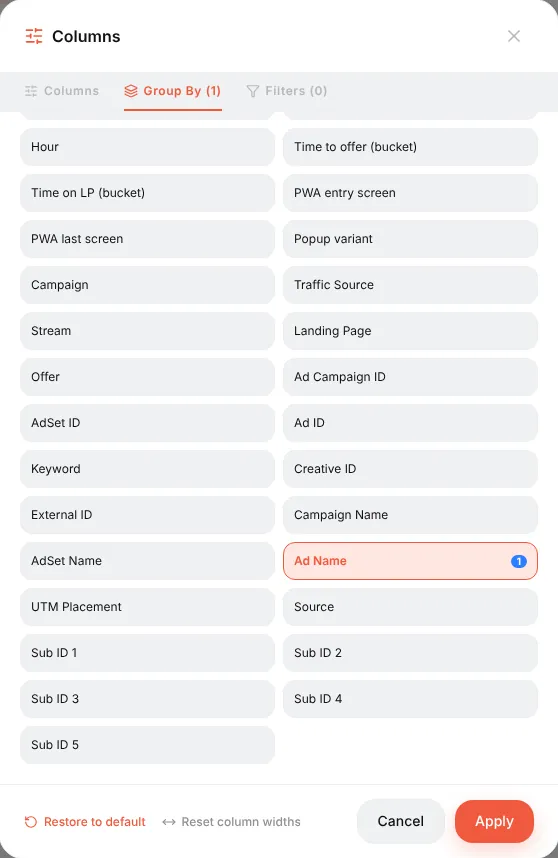
Campaigns → Report (or the report icon on a campaign row) → Columns → Group By → remove Country → choose Ad Name → Apply.
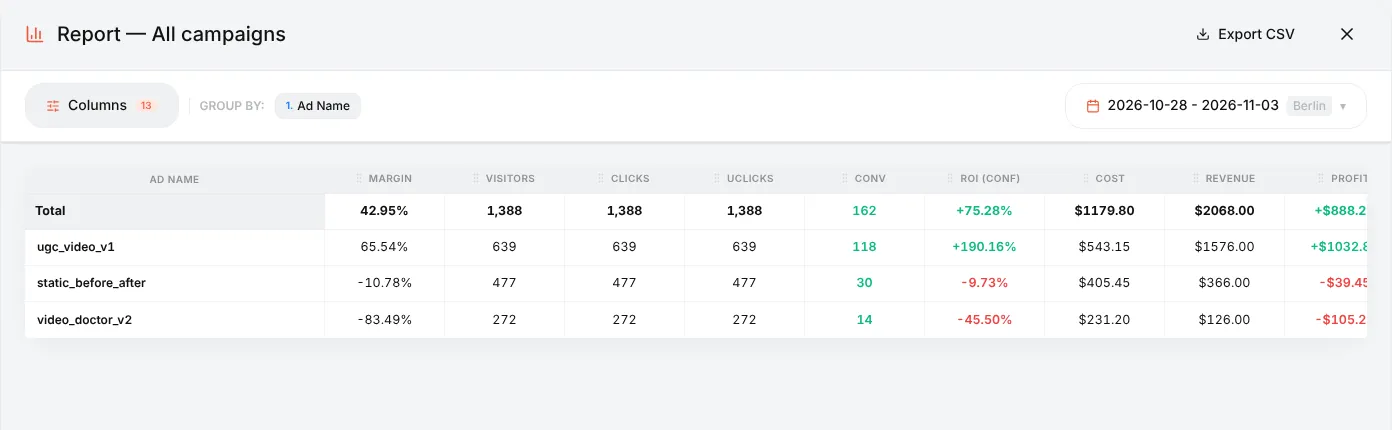
How to read this example:
| Creative | Clicks | Conv | CR | ROI | Verdict |
|---|---|---|---|---|---|
ugc_video_v1 | 639 | 118 | 18.5% | +190% | The winner — scale it |
static_before_after | 477 | 30 | 6.3% | −10% | Slightly negative — try a new version |
video_doctor_v2 | 272 | 14 | 5.1% | −46% | Losing money — switch off |
Look at ROI (conf) and CPA first: a creative can have a great click-through on Facebook and still bring visitors who never buy. Add Approve % for COD offers — some creatives bring leads that are later rejected.
You can stack groupings: Ad Name → Country or Ad Name → Device shows where each creative works. The preset Facebook Hierarchy builds Campaign → Ad set → Ad in one click.
Want to test creatives against different landings? Use a URL Parameter filter: stream 1 takes
ad_name = ugc_video_v1to landing A, stream 2 takes the rest to landing B. See Stream filters.
The Creatives library (with cost import)
When Facebook or TikTok cost import is connected (⚙ → Integrations, see Costs), Orbitra goes further: it downloads the actual images and videos of your ads and shows each creative with its spend, revenue and ROI.
- Content Gallery → Creatives — every creative across all campaigns, with filters (period, platform, format, tags) and a card per creative: daily spend and ROI, the ads that ran it, the ad text.
- Campaign editor → Creatives tab — what brought traffic into this campaign over the last 7 days.
- Creatives you upload yourself as drafts are linked automatically when the same picture starts running in an ad.
- The Telegram daily digest can list the best and worst creatives and warn when a creative "burns out".
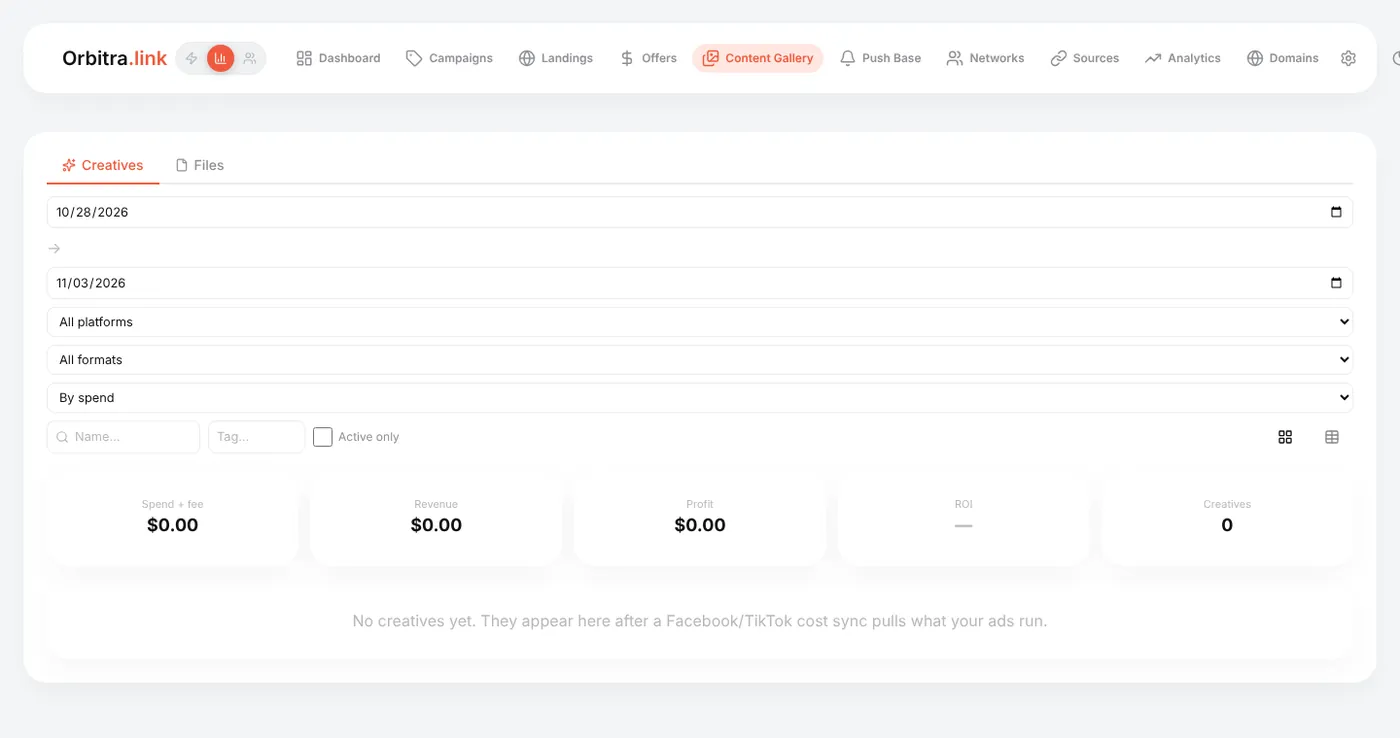
Without cost import the library stays empty — the report grouping above works anyway.
Reference: Creatives library, Reports.
Beginner's guide: start here
A screen-by-screen tour of Orbitra: what the tracker does, the words you will meet, and the order to read the guides in.
Read guide →GuideYour first campaign, step by step
From a fresh install to a working campaign link and a test conversion: domain, network, offer, source, campaign, postback.
Read guide →GuideConnecting a domain
Add a domain, point DNS at the tracker, get a free SSL certificate, and what every switch on the Domains page does.
Read guide →GuideOffers and affiliate networks
How offers and networks are organized in Orbitra: templates, offer parameters and payout settings.
Read guide →GuidePostbacks: what to tell your affiliate manager
How conversions reach Orbitra: the postback URL, statuses, and what to copy-paste to your network.
Read guide →GuideStreams: how traffic is distributed
What a stream is, schemas, rotation and weights, and how Orbitra decides where a click goes.
Read guide →GuideStream filters
Country, device, ISP, bots and more: every filter explained with examples of common routing setups.
Read guide →GuideCloaking for beginners
Safe page vs money page, filter levels, sensitivity, and how to test your cloak before sending real traffic.
Read guide →GuideLanding pages
Host landings right in the tracker: landing types, the {offer} macro, the JS adapter and tracking pixels.
Read guide →GuidePWA apps
Build an installable PWA from a landing page: icon, screenshots, store listing and limits.
Read guide →GuidePush notifications to PWA users
Collect push subscribers from PWA landings and send them notifications — free re-engagement traffic.
Read guide →GuideContent Gallery
Store icons, screenshots and creatives in the tracker and reuse them across PWAs and landings.
Read guide →GuideCreatives and creative testing
Track which creative a click came from: subid routing, a test campaign and reading the report.
Read guide →