Postbacks: what to tell your affiliate manager
What a postback is
When a visitor buys on the advertiser's site, the sale is recorded in the affiliate network, not in your tracker. A postback is the network telling your tracker about it: a short server-to-server request like
https://track.example.com/a7f3c91e/postback?subid=0bc4ba11-688d-4de0-98b4-8b0d6e81cef&status=sale&payout=30It says: "the click 0bc4ba11… converted, status sale, you earn 30". Orbitra finds that click and from then on knows which campaign, stream, offer, country, ad and creative produced the money.
Without postbacks the tracker counts clicks but never sees a single conversion, so revenue, profit, ROI and CR stay at zero.
How the click ID makes the round trip
1. Visitor clicks your ad → Orbitra creates click 0bc4ba11…
2. Orbitra redirects to the offer:  https://network/offer?aff=777&sub1=0bc4ba11…
                                                              ▲ added by the network's "offer parameters"
3. The network remembers sub1 for this visitor
4. Visitor buys → the network calls your postback URL and puts sub1 back:
       https://track.example.com/a7f3c91e/postback?subid=0bc4ba11…&status=sale&payout=30
5. Orbitra marks click 0bc4ba11… as a conversion
Two settings make it work:
- the offer parameters of the network in Orbitra (
&sub1={subid}) — the click ID goes to the network; - the postback URL in the network's dashboard — the click ID comes back. The network replaces its own macro (
{sub1},{clickid},[SUB1]— every network spells it differently) with the stored value.
If you created the network from a template, both halves already use the right names.
Where to find your postback URL
- Networks → the network row (or the network editor) → Postback URL. This is the best one: it uses the network's own macro names.
- ⚙ → Postback URL — the generic address and examples for networks that are not in the template list.
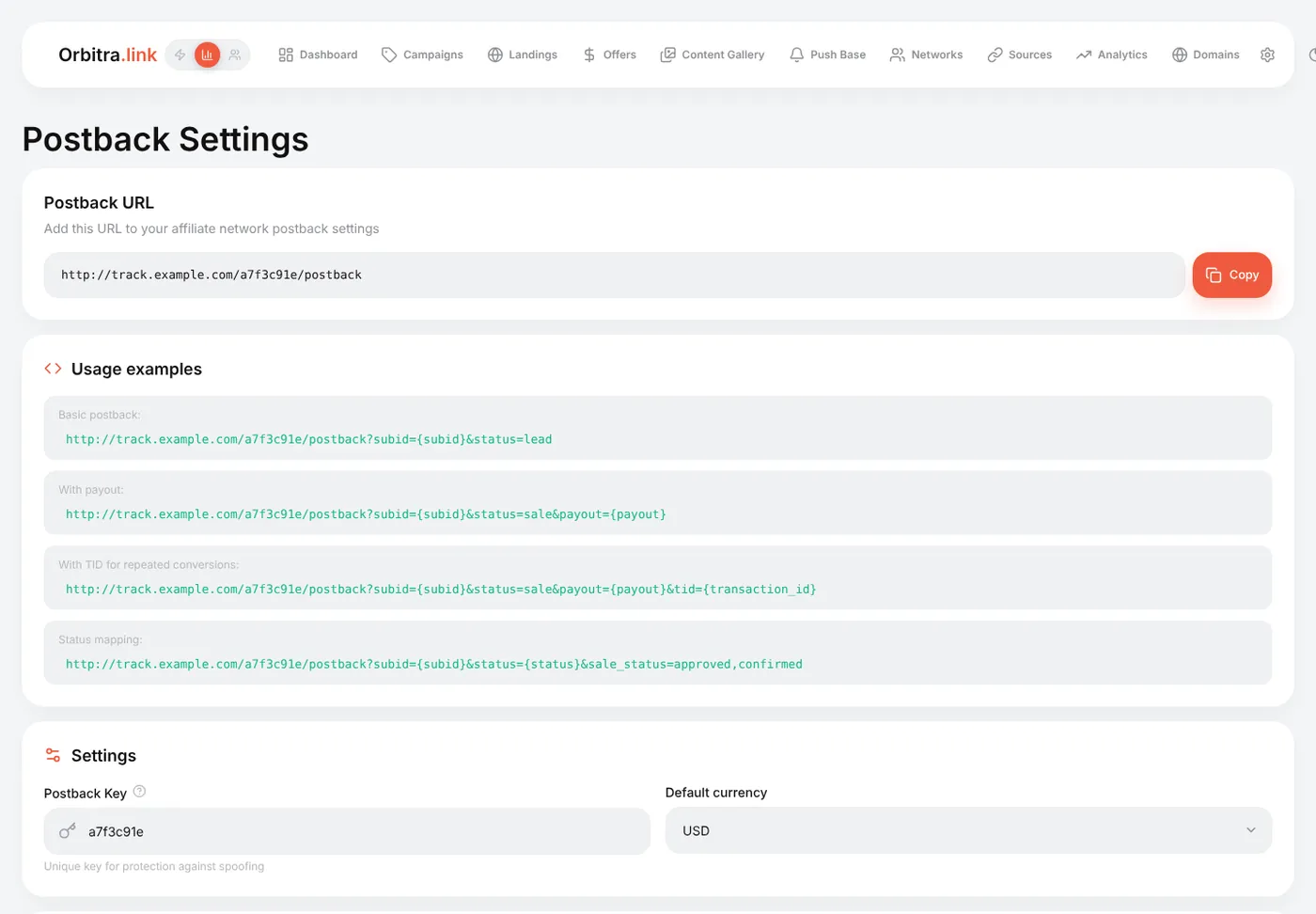
The parameters Orbitra understands:
| Parameter | Required | Meaning |
|---|---|---|
subid | yes | The Orbitra click ID — whatever the network received in sub1 (or the field you chose) |
status | no | lead, sale, rejected, trash, registration, deposit, or the network's own word (approved, pending, declined…) |
payout | no | How much you earn for this conversion |
currency | no | If the network pays in another currency — it is converted to the tracker currency |
tid | no | Transaction ID, needed when one click can bring several conversions (e.g. repeat deposits) |
The network's own words for statuses are translated automatically (approved, confirmed → sale; declined, cancelled → rejected). You can map any other word right in the URL: &sale_status=approved,paid&lead_status=pending. Words Orbitra did not recognise show up in ⚙ → Settings → Conversion Types → Unmapped statuses, where you can assign them.
What to send your affiliate manager
Most networks set up the postback for you if you ask. Send something like this (replace the URL with yours):
Hi! Please set up a global postback for my account (all offers):
https://track.example.com/a7f3c91e/postback?subid={sub1}&status={status}&payout={payout}
- My click ID is passed in sub1 of the offer link — please return it insubid.
- Please send postbacks for all statuses: new lead (hold/pending), approved, rejected and trash, with the payout for approved.
- Method GET is fine.
Could you also tell me your macro names for the click ID, status and payout, if they differ from{sub1},{status},{payout}? Thanks!
What to check in their answer:
- Which field carries your click ID. If they say "use
aff_sub", change the network's offer parameters in Orbitra to&aff_sub={subid}and the postback tosubid={aff_sub}. - Their macro syntax.
{sub1},[SUB1],%sub1%,{{sub1}}— copy exactly what they use. - Status words. If they send
status=1/2/3or Russian words, map them with&sale_status=…&lead_status=…&rejected_status=…or in Conversion Types. - Per-offer vs global. A global postback covers every offer; a per-offer postback must be added to each offer separately.
How to test it
- Make one real click through the campaign link (or use a click from ⚙ → Logs → Traffic) and copy its click ID.
- ⚙ → Postback URL → Test Postback: paste the click ID, choose a status, press Test.
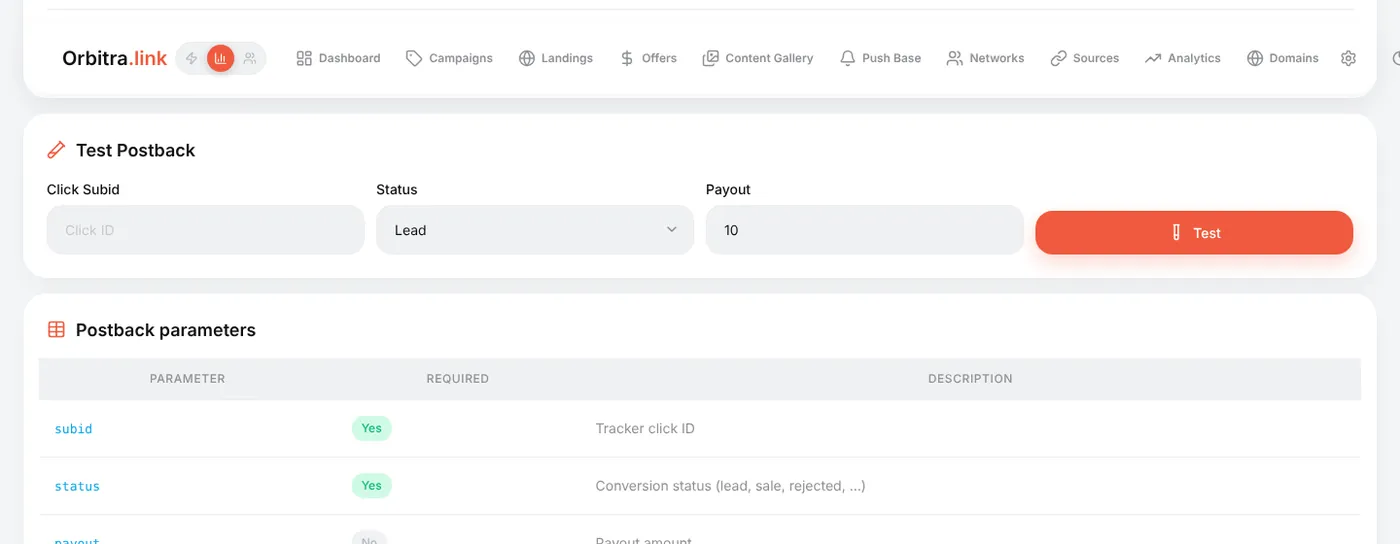
- Open ⚙ → Conversions — the conversion is there, and the campaign's counters change.
Many networks also have a "test postback" button that fires a request with a fake sub1. Orbitra answers it with "click not found" — that is expected; it proves the URL is reachable.
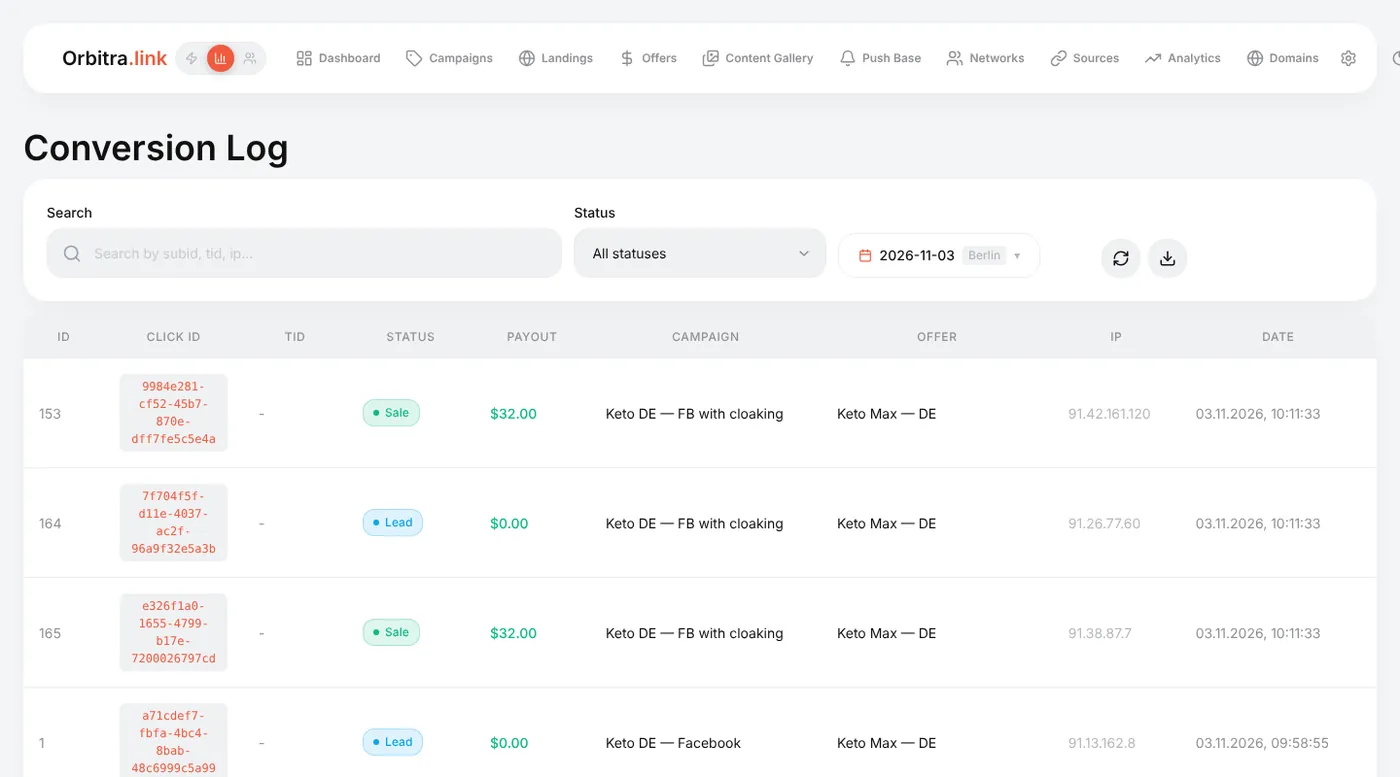
⚙ → Logs → Incoming Postbacks lists every request that arrived, including rejected ones, with the reason. It is the first place to look when "the network says it sent, the tracker shows nothing".
Sending conversions back to the traffic source (S2S)
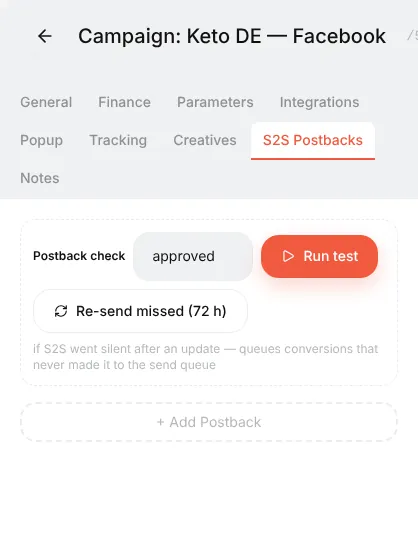
Some traffic sources (push and pop networks, TikTok, some native networks) optimise better when they receive your conversions. That is an outgoing postback, configured on the campaign's S2S Postbacks tab. If the traffic source template has a postback URL, a new campaign gets it automatically. The Run test button there checks the whole chain. Facebook and TikTok use their Conversions API instead — see Facebook / Meta.
Troubleshooting
| Symptom | Where to look |
|---|---|
| Nothing in Incoming Postbacks | The network never called you: wrong URL in their dashboard, or the postback is set per-offer for another offer |
| "Click not found" | The click ID is not being passed: check the network's offer parameters and the macro in the postback |
| "Wrong key" | The URL contains an old postback key. A network created before you changed the key keeps the old key in its saved Postback URL — fix the key in that URL (network editor) and update it in the network dashboard |
Conversion recorded with status custom | The network's status word is not mapped — fix it in Conversion Types |
| Payout is 0 | The network does not substitute {payout}, or sends it under another name — add a parameter alias on the Postback page |
Reference: Postbacks and conversions.
Beginner's guide: start here
A screen-by-screen tour of Orbitra: what the tracker does, the words you will meet, and the order to read the guides in.
Read guide →GuideYour first campaign, step by step
From a fresh install to a working campaign link and a test conversion: domain, network, offer, source, campaign, postback.
Read guide →GuideConnecting a domain
Add a domain, point DNS at the tracker, get a free SSL certificate, and what every switch on the Domains page does.
Read guide →GuideOffers and affiliate networks
How offers and networks are organized in Orbitra: templates, offer parameters and payout settings.
Read guide →GuidePostbacks: what to tell your affiliate manager
How conversions reach Orbitra: the postback URL, statuses, and what to copy-paste to your network.
Read guide →GuideStreams: how traffic is distributed
What a stream is, schemas, rotation and weights, and how Orbitra decides where a click goes.
Read guide →GuideStream filters
Country, device, ISP, bots and more: every filter explained with examples of common routing setups.
Read guide →GuideCloaking for beginners
Safe page vs money page, filter levels, sensitivity, and how to test your cloak before sending real traffic.
Read guide →GuideLanding pages
Host landings right in the tracker: landing types, the {offer} macro, the JS adapter and tracking pixels.
Read guide →GuidePWA apps
Build an installable PWA from a landing page: icon, screenshots, store listing and limits.
Read guide →GuidePush notifications to PWA users
Collect push subscribers from PWA landings and send them notifications — free re-engagement traffic.
Read guide →GuideContent Gallery
Store icons, screenshots and creatives in the tracker and reuse them across PWAs and landings.
Read guide →GuideCreatives and creative testing
Track which creative a click came from: subid routing, a test campaign and reading the report.
Read guide →