PWA apps
What a PWA is
A PWA (Progressive Web App) is a website that the visitor can install on the phone's home screen. It gets an icon, opens full-screen without the browser bar and looks like an app. Orbitra builds one for you in a few minutes:
- The visitor clicks your ad and lands on a page that looks like an app store listing (Google Play on Android, App Store on iPhone): icon, rating, reviews, screenshots, an Install button.
- They tap Install → the browser shows its install sheet → the app icon appears on the home screen.
- When they open the app, it shows your screen (the money step) and sends them to the offer.
- Optionally, the app asks for push notifications — and you get a subscriber you can message for free later. → Push notifications
Why bother? An installed app keeps a direct line to the visitor: they come back by tapping the icon, without another paid click, and pushes bring them back again. PWAs are popular for gambling, betting, dating and subscription offers.
In Orbitra a PWA is a special kind of landing, so it goes into campaigns, streams, cloaking and reports like any other landing.
How to build one
Landings → PWA. The builder has four steps and a live phone preview on the right.
Step 1. General
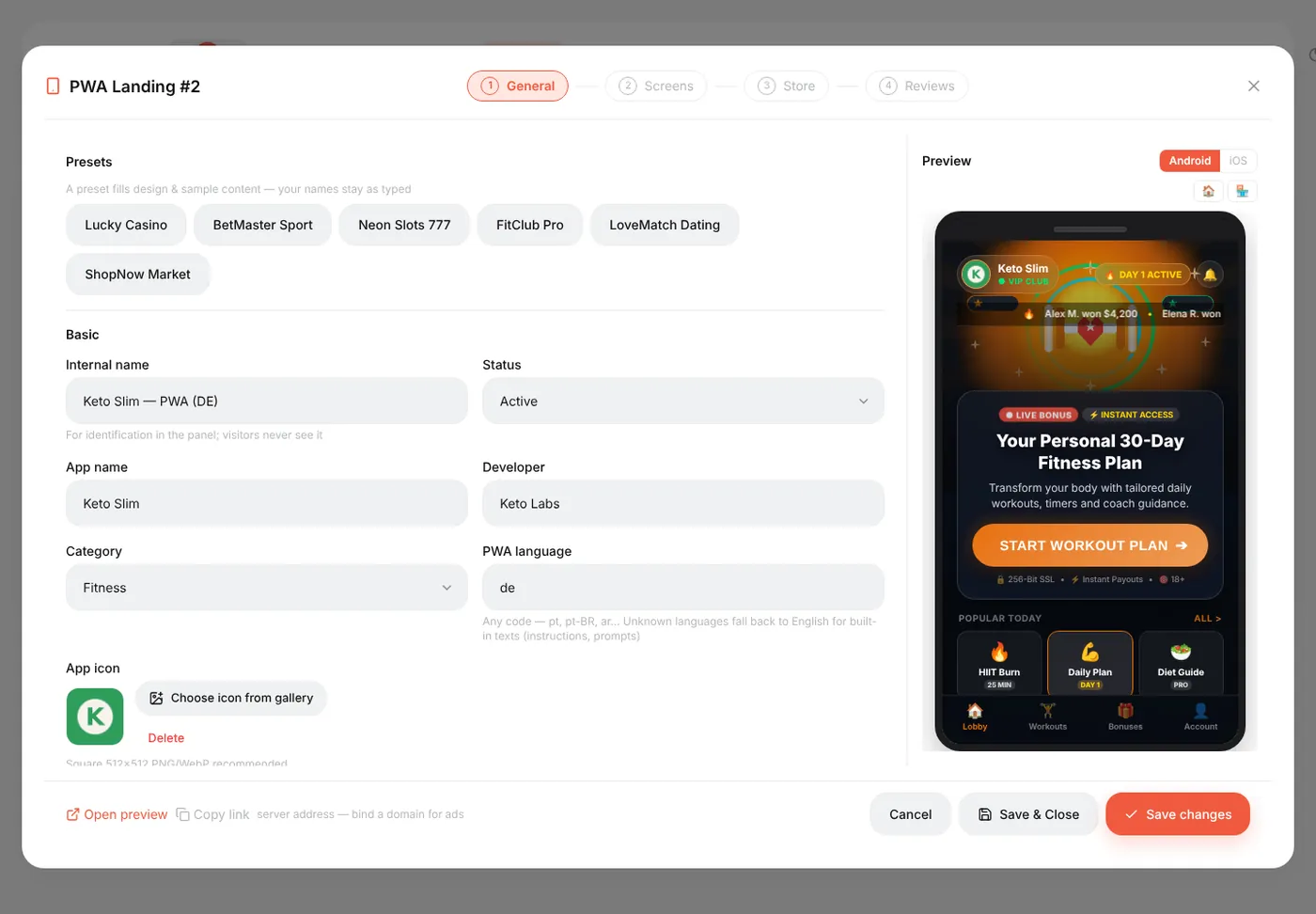
- Presets fill the design and sample content in one click (casino, betting, fitness, dating, shop…). Your names stay as typed.
- Internal name (only you see it), App name, Developer, Category, PWA language.
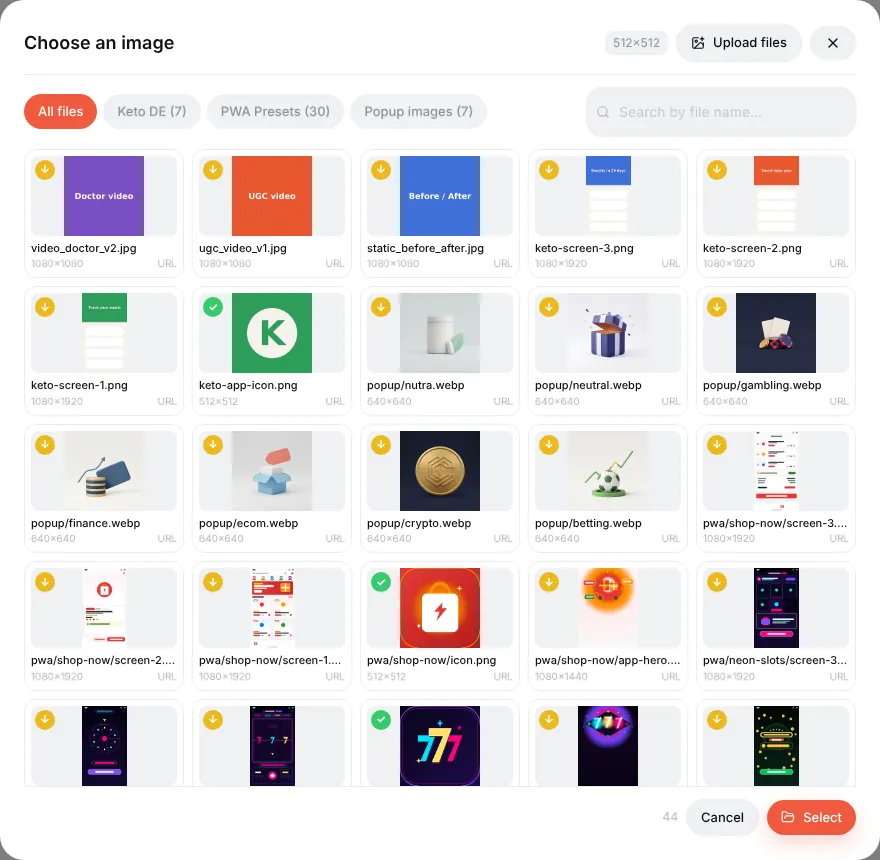
- App icon — Choose icon from gallery. The picker marks images that fit 512×512; a bigger one can be cropped right there. → Content Gallery
- Domain — optional; see A clean domain for the app.
- Appearance — store style (Auto picks Google Play or App Store by the visitor's phone), theme, colours, badges and effects.
The Install readiness block is a checklist: icon, description, screenshots of the right size and push keys. With all green, Chrome shows the big "store-like" install sheet instead of a plain prompt.
Step 2. Screens
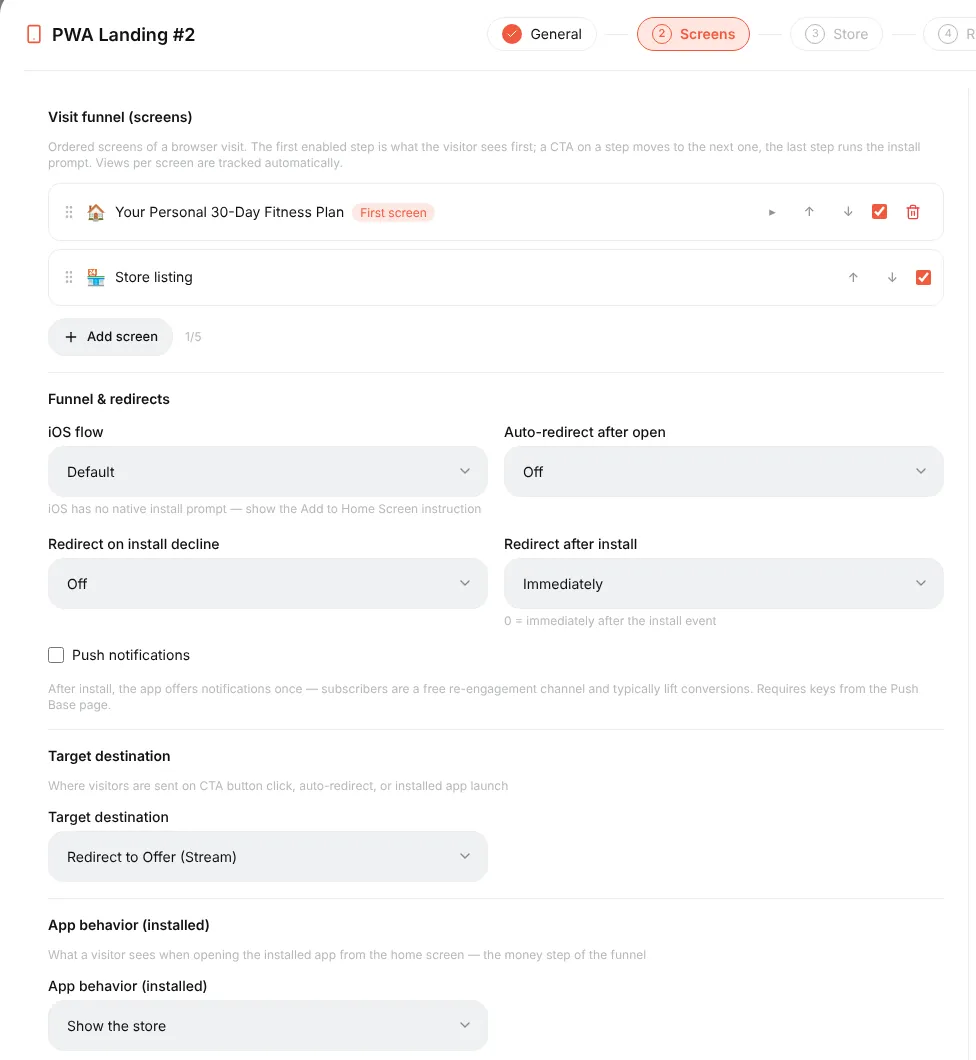
- Visit funnel (screens) — what the visitor sees, in order. The first screen is the landing part; the store listing runs the install. Add screens for a quiz or a bonus wheel before the store.
- Funnel & redirects — what happens after install or if the visitor declines; iOS has no native install prompt, so it can show an "Add to Home Screen" instruction.
- Push notifications — tick to ask installed users for notifications (needs keys on the Push Base page).
- Target destination — where the CTA leads: the offer from the stream, a campaign, or a URL.
- App behavior (installed) — what opens when the user taps the icon on the home screen.
Step 3. Store
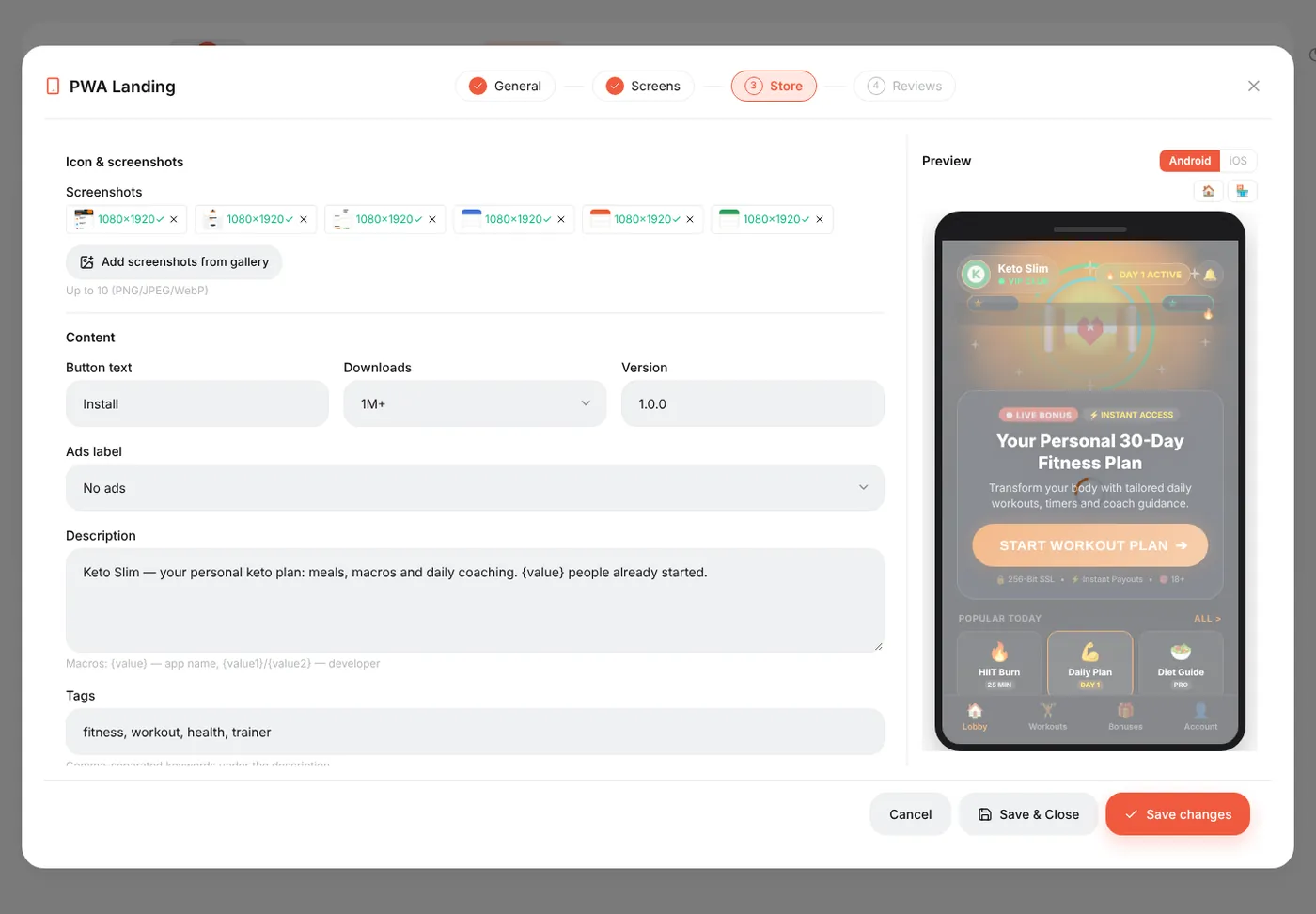
The texts of the store listing: button text, downloads, version, description ({value} puts a growing number in it), tags, rating, and screenshots from the gallery.
Step 4. Reviews
User reviews shown on the listing. Edit them or keep the preset ones.
Press Save changes. Open preview at the bottom shows the real page.
Putting the PWA into a campaign
A PWA is used like a landing: in a stream choose Landing + Offer, press Add landing pages, pick the PWA, then Add offers. The visitor goes ad → campaign link → PWA store page → install → app → offer, and every step is attributed to the original click.
A clean domain for the app
You can also bind a domain to the PWA (step 1 → Domain, or in the domain settings). Then https://app-domain.com/ opens the store page directly — a short, clean link that installs nicely. Visits without a campaign are recorded as organic clicks; pick an offer next to the domain so the button has somewhere to go. One domain serves one PWA.
Statistics
The Landings list and campaign reports have PWA columns:
| Column | Meaning |
|---|---|
| PWA Intent | Taps on Install (before the browser's prompt) |
| Real PWA Inst | Completed installs by real visitors (bots excluded) |
| PWA Opens | Re-opens of the installed app from the home screen |
| PWA CR | Real installs ÷ clicks |
| Push subs | Visitors who allowed notifications |
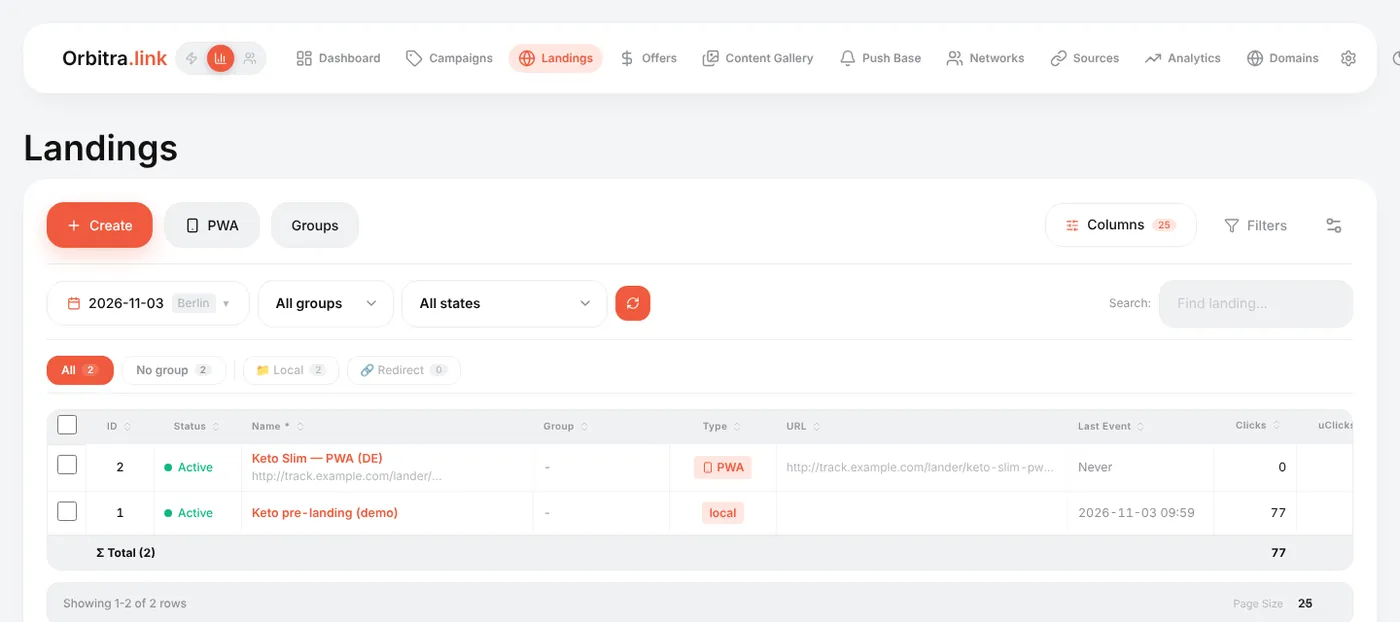
Per-screen numbers (how many saw each funnel screen) are on the PWA's funnel card. → PWA Funnel
Good to know
- Installation needs HTTPS — use a domain with a certificate, not the bare IP.
- In-app browsers (Facebook, Instagram, TikTok) cannot install apps. The PWA shows an "open in your browser" card there, and the Auto-open in browser option tries to leave the in-app browser automatically.
- iPhone users install through Share → Add to Home Screen; the PWA explains this on iOS.
Reference: PWA and Web Push, PWA Funnel, External PWA and Telegram channels.
Beginner's guide: start here
A screen-by-screen tour of Orbitra: what the tracker does, the words you will meet, and the order to read the guides in.
Read guide →GuideYour first campaign, step by step
From a fresh install to a working campaign link and a test conversion: domain, network, offer, source, campaign, postback.
Read guide →GuideConnecting a domain
Add a domain, point DNS at the tracker, get a free SSL certificate, and what every switch on the Domains page does.
Read guide →GuideOffers and affiliate networks
How offers and networks are organized in Orbitra: templates, offer parameters and payout settings.
Read guide →GuidePostbacks: what to tell your affiliate manager
How conversions reach Orbitra: the postback URL, statuses, and what to copy-paste to your network.
Read guide →GuideStreams: how traffic is distributed
What a stream is, schemas, rotation and weights, and how Orbitra decides where a click goes.
Read guide →GuideStream filters
Country, device, ISP, bots and more: every filter explained with examples of common routing setups.
Read guide →GuideCloaking for beginners
Safe page vs money page, filter levels, sensitivity, and how to test your cloak before sending real traffic.
Read guide →GuideLanding pages
Host landings right in the tracker: landing types, the {offer} macro, the JS adapter and tracking pixels.
Read guide →GuidePWA apps
Build an installable PWA from a landing page: icon, screenshots, store listing and limits.
Read guide →GuidePush notifications to PWA users
Collect push subscribers from PWA landings and send them notifications — free re-engagement traffic.
Read guide →GuideContent Gallery
Store icons, screenshots and creatives in the tracker and reuse them across PWAs and landings.
Read guide →GuideCreatives and creative testing
Track which creative a click came from: subid routing, a test campaign and reading the report.
Read guide →